
A New Online & Mobile Banking Experience for Your Business

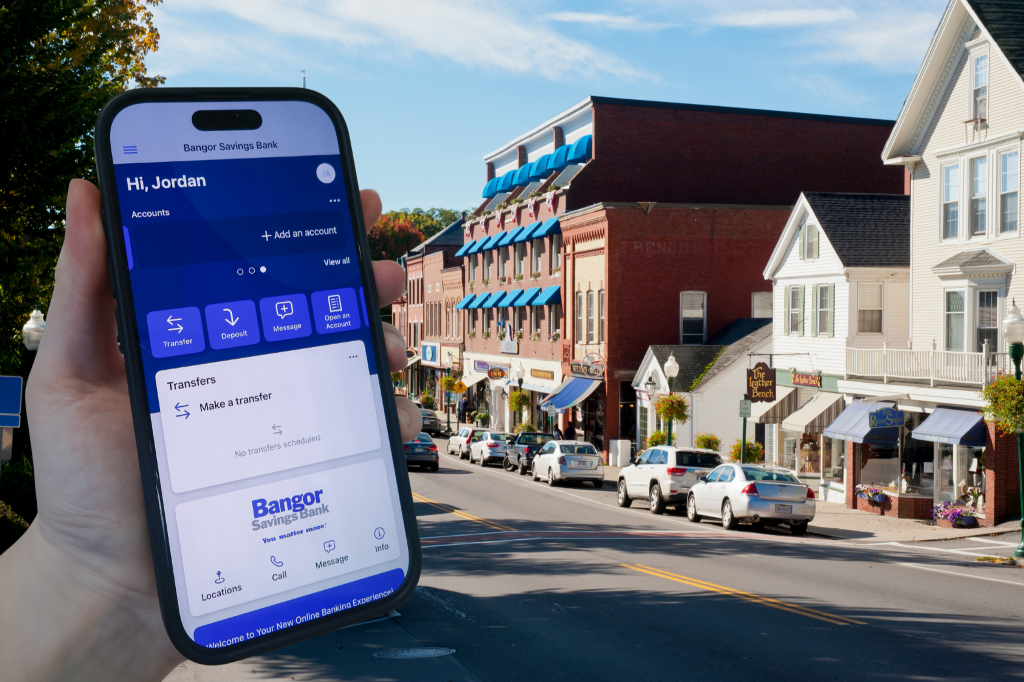
Bangor Online for Business brings a modern, streamlined approach to managing your finances, with enhanced tools for mobile access, money movement, and security—while maintaining the capabilities you depend on today.

This page will guide you through what’s ahead, including key milestones, important details, and resources to help you prepare. Be sure to check back regularly for the latest updates.

Your New Bangor Online Experience

To bring you a better, more intuitive digital banking experience, we're launching Bangor Online for Business, an online banking platform designed specifically for businesses like yours. With the transition to Bangor Online for Business, you'll enjoy a more powerful, secure, and streamlined banking experience. This upgrade includes new and enhanced tools delivering broader money movement and payment capabilities, enhanced security and fraud protection along with robust entitlement capabilities allowing you to assign users precise access to accounts, services, and functions, helping ensure employees have what they need to do their jobs efficiently.

Getting Ready for the Transition—Steps to Complete

To help ensure a smooth transition and timely delivery of future communications, please log in to Bangor Online and complete the tasks below.

  • What: Make sure your mailing address, phone number, and email address are correct.

    Why: Accurate information helps ensure you receive important alerts and transition-related updates.

    How: Log in to Bangor Online. From the main menu, navigate to the 'Connect with Us' tab to complete the Contact Info Update Form, if needed.
  • To prepare, complete the following items:

    Today

    Contact Information
    • Make sure your contact information is correct as we will use this information to send important updates

    Username
    • Ensure you know your current Bangor Online Username as it will be needed for your first log in to the NEW Bangor Online for Business
     

    Prior to Friday, September 4

    BillPay
    • IMPORTANT: Beginning Friday, September 4 at 8:00AM EST, access to BillPay will become unavailable
      • NOTE: Payments scheduled for delivery by September 11 will be processed as planned. Payments scheduled for delivery after September 11 will be transitioned to Bangor Online for Business, with the exception of eBills
    • Review current and hidden 'Payees' and delete the 'Payees' that are no longer needed
    • Save 'Payee' information for confirmation that it transitions correctly
    • Make note of eBills that will no longer arrive. You will need to make alternative arrangements for payment
     

    Prior to Thursday, September 10

    Alerts & Notifications
    • Review and document any Alerts and Notifications you wish to reestablish in Bangor Online for Business as your current Alerts and Notifications will not transition

    Card Controls & Alerts
    • Review Card Management functions (Controls & Alerts, Travel Plans, etc.) and note which ones you will want to create in Bangor Online for Business

    Documents & Statements
    • Historical eStatements: While historical eStatements will transition, we recommend downloading them as it may be up to 60 days before you can access them
    • Historical Tax Documents: While the last 3 years of historical tax documents will transition, we recommend downloading them as it may be up to 60 days before you can access them

    External Transfers
    • Document any scheduled or recurring external transfers as these will not transition
      • Reminder: Standard external transfers will not be available until a future date

    Internal Transfers
    • Future Dated, Scheduled/Recurring Internal Transfers: While transfers with frequencies of weekly, bi-weekly, twice a month, and monthly will transition, we recommend saving your existing transfers to confirm they transition correctly
    • Take note of transfers with scheduled frequencies of once every 3 months, once every 6 months, and annually. These will not transition as they are not available transfer frequencies in the NEW Bangor Online for Business
    • Reschedule any internal transfers currently scheduled between September 12 and 13 to take place on either September 11 and 14. No internal transfers will take place between September 12 and 13

    Mobile Deposit
    • Review and save any mobile deposit history as it will not transition and will be unavailable after September 11

    Quicken, QuickBooks, Mint Users
    • Complete a data file backup and final transaction download. Doing so will help ensure access to transaction history after the conversion.

    Subusers / Shared Access with Others
    • Document and save sub-users, as they will not transition and will need to be recreated
    • Inform subusers they will lose access as of 3:00PM EST on September 11, 2026
    • Need to know who has access? From the main menu within Bangor Online, navigate to the ‘Additional Services’ tab and select ‘Share Access with Others’

Transition Guide & How to Prepare

We've put together a comprehensive guide to help you with the conversion. 

Read the Guide

Important Dates, What to Expect, & Required Actions

Today

  • Make sure your contact information is correct as we will use this information to send important updates
  • Ensure you know your current Bangor Online Username. You will need it for the first-time log in to Bangor Online for Business

Tuesday, August 18

  • Your Online Banking Conversion Package is mailed
    • This package includes important information to help you prepare for the transition

Friday, September 4

  • IMPORTANT: Beginning at 8:00AM EST, access to BillPay will become unavailable. 
    • NOTE: Payments scheduled for delivery by September 11 will be processed as planned. Payments scheduled for delivery after September 11 will be transitioned to Bangor Online for Business, with the exception of eBills
  • IMPORTANT: Complete the BillPay tasks outlined in the “Getting Ready for the Transition—Steps to Complete” section above

Thursday, September 10

  • The transition to Bangor Online for Business begins
  • Any system updates (user changes, scheduled transfers, etc) made after 6:00PM EST will not transition
  • IMPORTANT: Complete the remaining tasks outlined in the “Getting Ready for the Transition—Steps to Complete” section above

Friday, September 11 - Sunday, September 13 – Upgrade Weekend

  • Beginning at 3:00PM EST on September 11, access to the current Bangor Online banking platform and the Bangor Mobile app will become unavailable and will remain unavailable
  • Based on device operating system, uninstall or remove the current Bangor mobile app from your device

Monday, September 14 – Begin Using Bangor Online for Business

  • As of 8:00AM EST, login and begin using Bangor Online for Business
  • Complete Post Log In Action Items outlined below
  • Confirm your accounts and information has transitioned correctly
  • Download the NEW Bangor Savings Bank mobile app

How to Get Started in Bangor Online for Business

The upgrade to Bangor Online for Business will be complete on Monday, September 14, 2026 at 8:00AM. Please follow the below steps to log in for the first time.

  1. Visit bangor.com and select 'Log In' from the top right corner or download the new Bangor Savings Bank mobile app (see below) to get started!
  2. Enter your current Bangor Online Username
  3. Enter the temporary password that you were provided in your Online Banking Conversion Package
  4. Follow the prompts to establish a new password
  5. Click Get Started to set up your two-factor authentication (2FA) method
  6. Select which 2FA method you would like to use (Passkey, phone/SMS, authenticator app, security key of Symantec VIP token) and then follow the prompts to setup and verify the method selected
  7. Review and accept the NEW Bangor Online for Business terms and conditions

To Download the NEW Bangor Savings Bank mobile app

  1. Download the Bangor Savings Bank mobile app from App Store® or Google Play
  2. Open the app and log in:
    • If this is your first time, follow the same prompts as noted above to complete your initial login
    • If you have already completed your first login, simply enter the Username and Password that you previously established

Post Log In Action Items

(Starting Monday, September 14)

Once you have successfully logged into Bangor Online for Business, please complete the following items, as applicable, to ensure your online banking services are reestablished correctly. If anything appears incorrect, contact our Bangor Support team at 1.877.226.4671 for assistance.

  • Review Your Details: Review your information (Address, Contact Info) under your profile to ensure everything is accurate.
  • Confirm Your Accounts: Review your accounts and account information to ensure everything transitioned correctly.
  • Confirm Your Bill Payment: Review your Billers, Scheduled Payments, and History to ensure everything has transitioned correctly.
    • Reminder: Auto payments attached to eBills will not transfer and alternate arrangements for payment should be made such as setting them up as a Biller.
    • NOTE: Some Billers may have converted without an address and need to be verified before a payment will be sent.
  • Review Your Scheduled Bill Payments: Scheduled Bill Payments that are sent electronically will be debited from your payment account after 5:00PM EST the day before your scheduled delivery date. Review your scheduled payments and make adjustments to accommodate this change if necessary.
  • Confirm Internal Transfers: Review your Future Dated, Scheduled / Recurring Internal Transfers to ensure everything transitioned correctly.
    • Reminder: Transfers with frequencies of once every 3 months, once every 6 months, and annually are not available in Bangor Online for Business.
  • Set Up Your Alerts and Notifications: Alerts and notification settings will not transfer. Be sure to reestablish them to continue receiving updates.
  • Manage Cards: Connect to Card Controls & Alerts to be able to manage your Bangor Savings Bank Debit Mastercard® BusinessCard®(s) and everblue® Business Rewards Plus Credit Card(s)
  • Reconnect Third-Party Apps: If you use apps or services that connect to your Bangor Online accounts, reestablish those connections to continue sharing account information and receiving updates
  • Permission Users: Add your employees and assign permissions. For step-by-step guides, refer to the guide in the "Tutorials & How To Guide" section below to get started.
  • Make Your Dashboard Work for You: Personalize your ‘My Dashboard’ to quickly access what matters most. For a step-by-step guide to tailor your dashboard, refer to the video and guide in the "Tutorials & How To Guide" section below.
  • Connect Your Banking to Intuit: Sync your accounts with Intuit products. For step-by-step guides, refer to the guide in the "Tutorials & How To Guide"section below to get started.

What Remains, What's New, What's Changing

Features NEW Bangor Online for Business Current Bangor Online
Alerts & Notifications Check-Mark.png Check-Mark.png
Bill Pay Check-Mark.png Check-Mark.png
Card Controls & Alerts Check-Mark.png Check-Mark.png
Internal Transfers Check-Mark.png Check-Mark.png
Mobile Deposit1

Check-Mark.png

Check-Mark.png
Intuit Product Connections Check-Mark.png Check-Mark.png
Subusers / Shared Access with Others Check-Mark.png Check-Mark.png
Fraud Tools2 NEW Check-Mark.png
Payment Options NEW
Send Money (P2P)
Not available today
Money Management Tools NEW
Account Aggregation & Transaction Enrichment
Not available today
Enhanced Loan Payment Options NEW
Pay a Loan (from a non-Bangor Savings Bank account)
Not available today
More External Money Management Options NEW Limited
Enhanced Security Enhanced Not available today
Electronic Notices / eStatements Enhanced Limited
In-App Chat & Secure Messaging NEW Check-Mark.png
Text Banking Not available Check-Mark.png

NEW Bangor Online for Business

Alerts & Notifications

Check-Mark.png

Bill Pay

Check-Mark.png

Card Controls & Alerts

Check-Mark.png

Internal Transfers

Check-Mark.png

Mobile Deposit1

Check-Mark.png

Intuit Product Connections

Check-Mark.png

Subusers / Shared Access with Others

Check-Mark.png

Fraud Tools2

NEW

Payment Options

NEW
Send Money (P2P)

Money Management Tools

NEW
Account Aggregation & Transaction Enrichment

Enhanced Loan Payment Options

NEW
Pay a Loan (from a non-Bangor Savings Bank account)

More External Money Management Options

NEW

Enhanced Security

Enhanced

Electronic Notices / eStatements

Enhanced

In-App Chat & Secure Messaging

NEW

Text Banking

Not available

Current Bangor Online

Alerts & Notifications

Check-Mark.png

Bill Pay

Check-Mark.png

Card Controls & Alerts

Check-Mark.png

Internal Transfers

Check-Mark.png

Mobile Deposit1

Check-Mark.png

Intuit Product Connections

Check-Mark.png

Subusers / Shared Access with Others

Check-Mark.png

Fraud Tools2

Check-Mark.png

Payment Options

Not available today

Money Management Tools

Not available today

Enhanced Loan Payment Options

Not available today

More External Money Management Options

Limited

Enhanced Security

Not available today

Electronic Notices / eStatements

Limited

In-App Chat & Secure Messaging

Check-Mark.png

Text Banking

Check-Mark.png

Frequently Asked Questions (FAQs)

  • Please follow the below steps to log in for the first time, once the upgrade to Bangor Online for Business is complete on Monday, September 14, 2026 at 8:00AM

    1. Visit bangor.com and select 'Log In' from the top right corner or download the new Bangor Savings Bank mobile app (see below) to get started!
    2. Enter your current Bangor Online Username
    3. Enter the temporary password that you were provided in your Online Banking Conversion Package
    4. Follow the prompts to establish a new password
    5. Click “Get Started” to set up your two-factor authentication (2FA) method
    6. Select which 2FA method you would like to use (Passkey, phone/SMS, authenticator app, security key of Symantec VIP token) and then follow the prompts to setup and verify the method selected
    7. Review and accept the NEW Bangor Online terms and conditions
     

    To access our First-Time Login step-by-step video, visit the “Tutorials & How to Guide” section below.


    To Download the NEW Bangor Savings Bank mobile app 

    1. Download the Bangor Savings Bank mobile app from App Store® or Google Play
    2. Open the app and log in:
      • If this is your first time, follow the same prompts as noted above to complete your initial login
      • If you have already completed your first login, simply enter the Username and Password that you previously established
  • Access to the current Bangor Online will be unavailable, and remain unavailable, starting Friday, September 11 at 3:00PM EST. Bangor Online for Business will be accessible on Monday, September 14 at 8:00AM EST.
  • To prepare, complete the following items: 

    Today

    Contact Information
    • Make sure your contact information is correct as we will use this information to send important updates

    Username
    • Ensure you know your current Bangor Online Username as it will be needed for your first log in to Bangor Online for Business
     

    Prior to Friday, September 4

    BillPay
    • Review current and hidden 'Payees' and delete the 'Payees' that are no longer needed
    • Make note of eBills that will no longer arrive. You will need to make alternative arrangements for payment
    • Save 'Payee' information for confirmation that it transitions correctly
     

    Prior to Thursday, September 10

    Alerts & Notifications
    • Review and document any Alerts and Notifications you wish to reestablish in Bangor Online for Business as your current Alerts and Notifications will not transition

    Card Controls & Alerts
    • Review Card Management functions (Controls & Alerts, Travel Plans, etc.) and note which ones you will want to create in Bangor Online for Business

    Documents & Statements
    • Historical eStatements: While historical eStatements will transition, we recommend downloading them as it may be up to 60 days before you can access them
    • Historical Tax Documents: While the last 3 years of historical tax documents will transition, we recommend downloading them as it may be up to 60 days before you can access them

    External Transfers
    • Document any scheduled or recurring external transfers as these will not transition
      • Reminder: Standard external transfers will not be available until a future date

    Internal Transfers
    • Future Dated, Scheduled / Recurring Internal Transfers: While transfers with frequencies of weekly, bi-weekly, twice a month, and monthly will transition, we recommend saving your existing transfers to confirm they transition correctly
    • Take note of transfers with scheduled frequencies of once every 3 months, once every 6 months, and annually. These will not transition as they are not available transfer frequencies in Bangor Online for Business.
    • Reschedule any internal transfers currently scheduled between September 12 and 13 to take place on either September 11 or 14. No internal transfers will take place between September 12 and 13

    Mobile Deposit
    • Review and save any mobile deposit history as it will not transition and will be unavailable after Friday, September 11

    Quicken, QuickBooks, Mint Users
    • Complete a data file backup and final transaction download. Doing so will help ensure access to transaction history after the conversion.

    Subusers / Shared Access with Others
    • Document and save sub-users, as they will not transition and will need to be recreated
    • Inform subusers they will lose access as of 3:00PM EST on September 11, 2026
    • Need to know who has access? From the main menu within Bangor Online, navigate to the ‘Additional Services’ tab and select ‘Share Access with Others’.


    Complete these tasks in Bangor Online


  • The following items will transition to Bangor Online for Business: 

    • Accounts and core user access
    • Bill Payment — Payees, Scheduled Payments, Bill Pay History (6 months)
    • eStatement enrollment
    • Historical eStatements (We recommend downloading copies as it may be up to 60 days before you can access them.)
    • Tax documents from the last 3 years (We recommend downloading copies as it may be up to 60 days before you can access them.)
    • Mobile Deposit enrollment
    • Future Dated, Scheduled / Recurring Internal Transfers with scheduled frequencies of weekly, bi-weekly, twice a month, and monthly
  • The following items will NOT transition to Bangor Online for Business, and will need to be reestablished on Monday, September 14, 2026. To help you prepare, please refer to the above FAQ “Do I need to complete anything to prepare?” for key action items to complete prior to September 11, 2026

    • Alerts and Notifications
    • Subusers / Shared Access with Others
    • Bill Payment — eBill Enrollment, eBill Auto Payments
    • Future Dated, Scheduled / Recurring Internal Transfers with scheduled frequencies of once every 3 months, once every 6 months, and annually
    • External Transfers — Future Dated, Scheduled / Recurring External Transfers3
    • Card Controls & Alerts — Enrollment and Preferences
    • Mobile Deposit History
    • Intuit Product Connections
    • Budgeting and Money Management Tools
    • Connections to third-party apps and services
  • Access to the current Bangor Online and mobile app will become unavailable and will remain unavailable starting at 3pm EST on September 11. You will begin using Bangor Online for Business and the new Bangor Savings Bank mobile app starting at 8am EST on September 14.
  • When the upgrade to Bangor Online for Business is complete on Monday, September 14, 2026 at 8:00AM, you will begin using a new link to log in to Bangor Online for Business.
  • Once you have successfully logged into Bangor Online for Business, please complete the following items, as applicable, to ensure your online banking services are reestablished correctly. If anything appears incorrect, contact our Bangor Support team at 1.877.226.4671 for assistance. 

    • Review Your Details: Review your information (Address, Contact Info) under your profile to ensure everything is accurate
    • Confirm Your Accounts: Review your accounts and account information to ensure everything transitioned correctly
    • Confirm Your Bill Payment: Review your Billers, Scheduled Payments, and History to ensure everything has transitioned correctly
      • Reminder: Auto payments attached to eBills will not transfer and alternate arrangements for payment should be made such as setting them up as a Biller.
      • NOTE: Some Billers may have converted without an address and need to be verified before a payment will be sent
    • Review Your Scheduled Bill Payments: Scheduled Bill Payments that are sent electronically will be debited from your payment account after 5:00PM EST the business day before your scheduled delivery date. Review your scheduled payments and make adjustments to accommodate this change if necessary
    • Confirm Internal Transfers: Review your Future Dated, Scheduled / Recurring Internal Transfers to ensure everything transitioned correctly
      • Reminder: Transfer with frequencies of once every 3 months, once every 6 months, and annually are not available in Bangor Online for Business
    • Set Up Your Alerts and Notifications: Alerts and notification settings will not transfer. Be sure to reestablish them to continue receiving updates
    • Manage Cards: Connect to Card Controls & Alerts to be able to manage your Bangor Savings Bank Debit Mastercard® BusinessCard®(s) and everblue® Business Rewards Plus Credit Card(s)
    • Permission Users: Add your employees and assign permissions. For step-by-step guides, refer to the guide in the "Tutorials & How To Guides" section below to get started
    • Make Your Dashboard Work for You: Personalize your ‘My Dashboard’ to quickly access what matters most. For a step-by-step guides to tailor your dashboard, refer to the video and guide in the "Tutorials & How To Guides" section below
    • Connect Your Banking to Intuit: Sync your accounts with Intuit products. For step-by-step guides, refer to the guide in the "Tutorials & How To Guides" section below to get started
    • Reconnect Third-Party Apps (after Permission Users): If you use apps or services that connect to your Bangor Online accounts, reestablish those connections to continue sharing account information and receiving updates

    Access to the current Bangor Online and mobile app will become unavailable and will remain unavailable starting at 3pm EST on September 11. You will begin using Bangor Online for Business and the new Bangor Savings Bank mobile app starting at 8am EST on September 14.
  • To begin using the NEW Bangor Savings Bank mobile app, follow the instructions below. 

    1. Download the Bangor Savings Bank mobile app from App Store® or Google Play
    2. Open the app and log in:
    • If this is your first time, follow the same prompts as noted above to complete your initial login
    • If you have already completed your first login, simply enter the Username and Password that you previously established
  • Electronic bill payments are withdrawn from the payment account after 5:00 PM EST on the business day before the scheduled delivery date. 
    For example, if the payment is scheduled to be delivered on Tuesday, the funds will typically be withdrawn after 5:00 PM EST on Monday.

    Note: This is slightly different from the former Bangor Online BillPay experience, where electronic payments were withdrawn on the scheduled payment date itself.
  • Electronic bill payments require sufficient available funds when the payment is processed, which occurs after 5:00 PM EST on the business day before the scheduled delivery date. If sufficient funds are not available at that time, the payment will be canceled, and the customer will be notified by email. 

    Access to the current Bangor Online and mobile app will become unavailable and will remain unavailable starting at 3pm EST on September 11. You will begin using Bangor Online for Business and the new Bangor Savings Bank mobile app starting at 8am EST on September 14.
  • If funds are not maintained in the account to cover future dated, scheduled/recurring transfers, the account may become overdrawn, and the customer is responsible for all fees associated with that transaction.

    Note: This is different from the former Bangor Online transfer experience, when if the funds were not available, the transfer would not occur.
  • If you have questions or need help navigating the new system, please contact our Bangor Support team at 1.877.226.4671.

Tutorials & How to Guides

Check back soon for instructions and resources

Bangor Online for Business User Guide

We've put together a comprehensive guide to help you with your transition to Bangor Online for Business

Read the Guide
Coming Soon:

Account Recovery

Coming Soon:

Transfers

Mint Logo

Mint Conversion Information

Intuit Quickbooks Logo

QuickBooks Desktop Conversion Instructions

Intuit Quickbooks Logo

QuickBooks Online Conversion Instructions

Customer support

We're Here to Support You Every Step of the Way

We know transitions like this come with questions and appreciate your partnership and the trust you place in Bangor Savings Bank. We look forward to supporting you and will continue to provide timely updates as the conversion approaches. If you have questions, please contact Bangor Support.

1 Mobile Deposit with Bangor Online for Business will be single item deposit.

2 Requires additional service agreements and setup. Fees apply.

3 Standard external transfers will not be available in Bangor Online for Business until a future date.